
How to Use Canva AI to Create a Presentation? Check It!
In today’s digital landscape, presentations are expected to be faster to produce and more creative to effectively capture audience attention. As a result, many people are learning how to use Canva AI to create a presentation that delivers modern, well-designed slides in a short amount of time.
Canva AI offers a range of advanced features that can be used by students, professionals, and brands to create presentations with visually compelling and impactful designs.
Key takeaways:
- Canva AI simplifies the entire presentation workflow from generating ideas to being presentation-ready.
- AI-powered features like Magic Design and Magic Media help users create visually compelling presentations faster.
- Tools such as Magic Animate, Magic Charts, and Magic Shortcuts enhance audience engagement.
Here Is How to Use Canva AI to Create a Presentation
Below are several advanced AI features in Canva that you can use to create presentations.
1. Magic Design
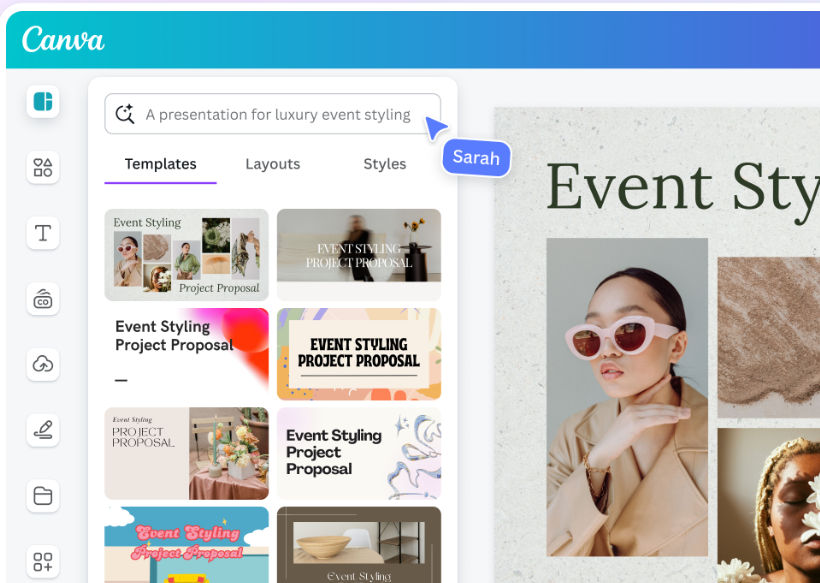
Magic Design is an AI-powered feature in Canva that allows users to preview presentation designs even before they start designing. By simply entering a short prompt such as “Startup pitch deck presentation with modern design,” Canva will automatically generate a collection of relevant presentation templates.
The generated designs are also flexible and can be customized to match your needs. Here is how Canva Magic Design works:
- Open the Canva Editor and select the Design tab on the left panel.
- Enter your presentation prompt in the search bar.
- Press Enter to display presentation templates based on your prompt.
- Click a template to preview the slides.
- Select Apply all pages to use the design instantly.
Also Read: How to Add Fonts to Canva and Elevate Your Visual Identity
2. Magic Write
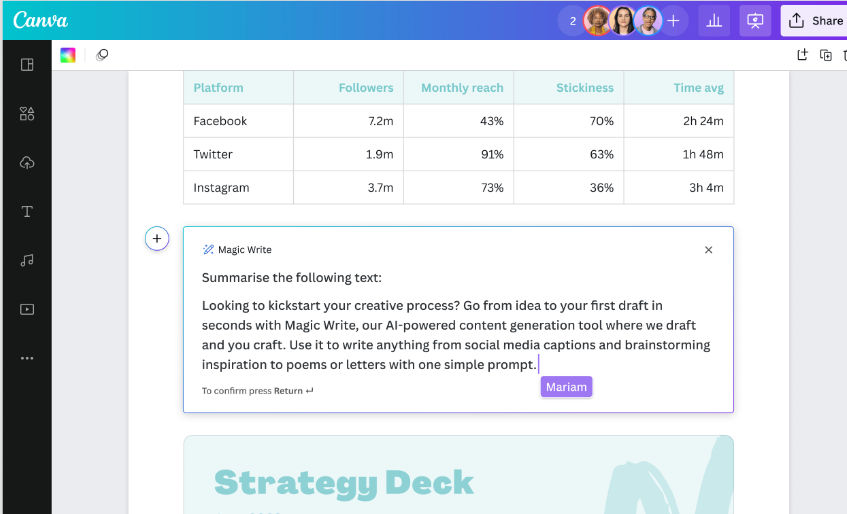
Canva’s Magic Write AI feature helps you structure presentation content, from text drafts and presentation outlines to slide-ready copy. This tool is useful when you struggle to start writing or run out of ideas mid-way.

One of Magic Write’s key strengths is its ability to expand slide content ideas based on the sentences or topics you provide. Furthermore, Magic Write also functions as a text summarizer, extracting key points from lengthy content into a more concise and readable version for presentations.
How to use Magic Write Canva AI presentation step by step:
- Open your presentation design in Canva.
- Activate Canva Assistant at the bottom-right corner of the page or type “/” to open the Canva Assistant shortcut.
- Enter a description of the text you want to generate.
- Adjust and edit the text before applying it to your slides.
3. Magic Media
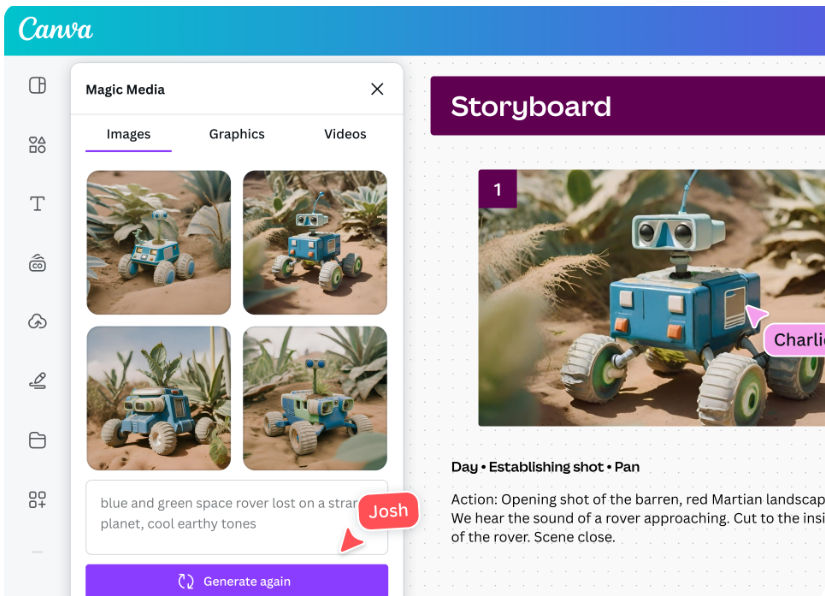
One of Canva’s AI features that makes it easy for users to create images and videos directly from text is Magic Media. This tool can generate presentation visuals without having to search for assets from the media library or create designs from scratch.
This feature works based on the prompt you write. According to Canva, the tip for getting optimal results is to write clear and specific descriptions to produce visuals that match your expectations.
Also Read: How to Design a Custom Badge For an Event? A Complete Guide
4. Magic Charts
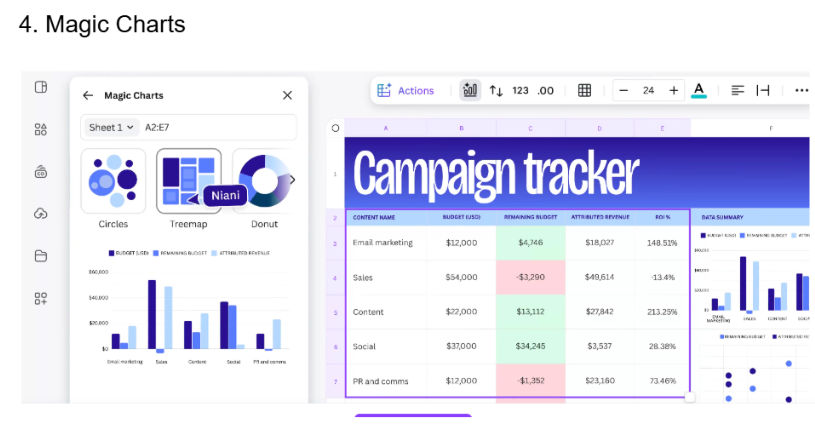
How to make a presentation with Canva AI, especially Magic Charts, starts with preparing relevant and well-structured data. You can import data from spreadsheets or Canva Sheets, then choose the most suitable chart type based on your data, such as bar charts, pie charts, line charts, and more.
You can customize the chart’s appearance, including colors and labels. Magic Charts makes it easy to turn complex data into clean, well-organized visuals in just a few clicks. This feature is useful for presentations that require supporting data, like research results, performance trends, or sales comparisons.
5. Magic Animate
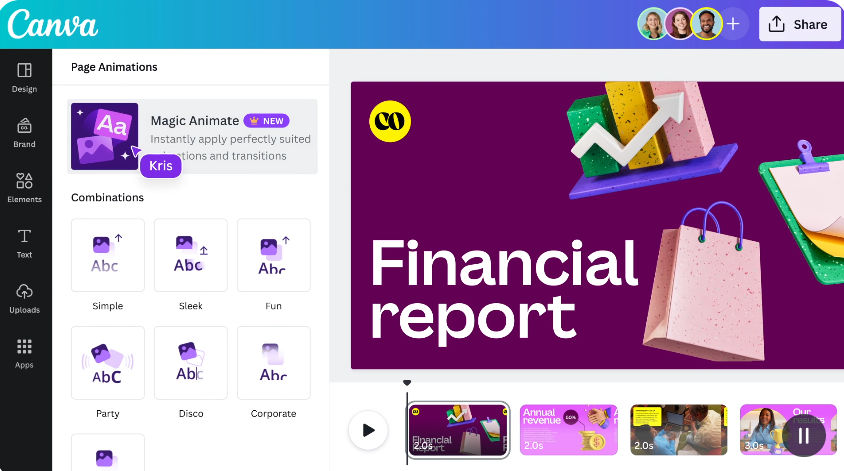
Another powerful AI feature in Canva is Magic Animate, which automatically applies animations and transitions across your entire presentation. The main advantage of this feature is that it helps make your slides more dynamic and engaging without manually selecting animations one by one.
In a practical Canva AI presentation generator tutorial, Magic Animate works by analyzing your existing presentation design. You simply select a slide, click Animate, and let Canva apply automatic transitions that enhance your content.
Also Read: Simple Guide How to Upload a Font to Cricut Design Space
6. Magic Shortcuts
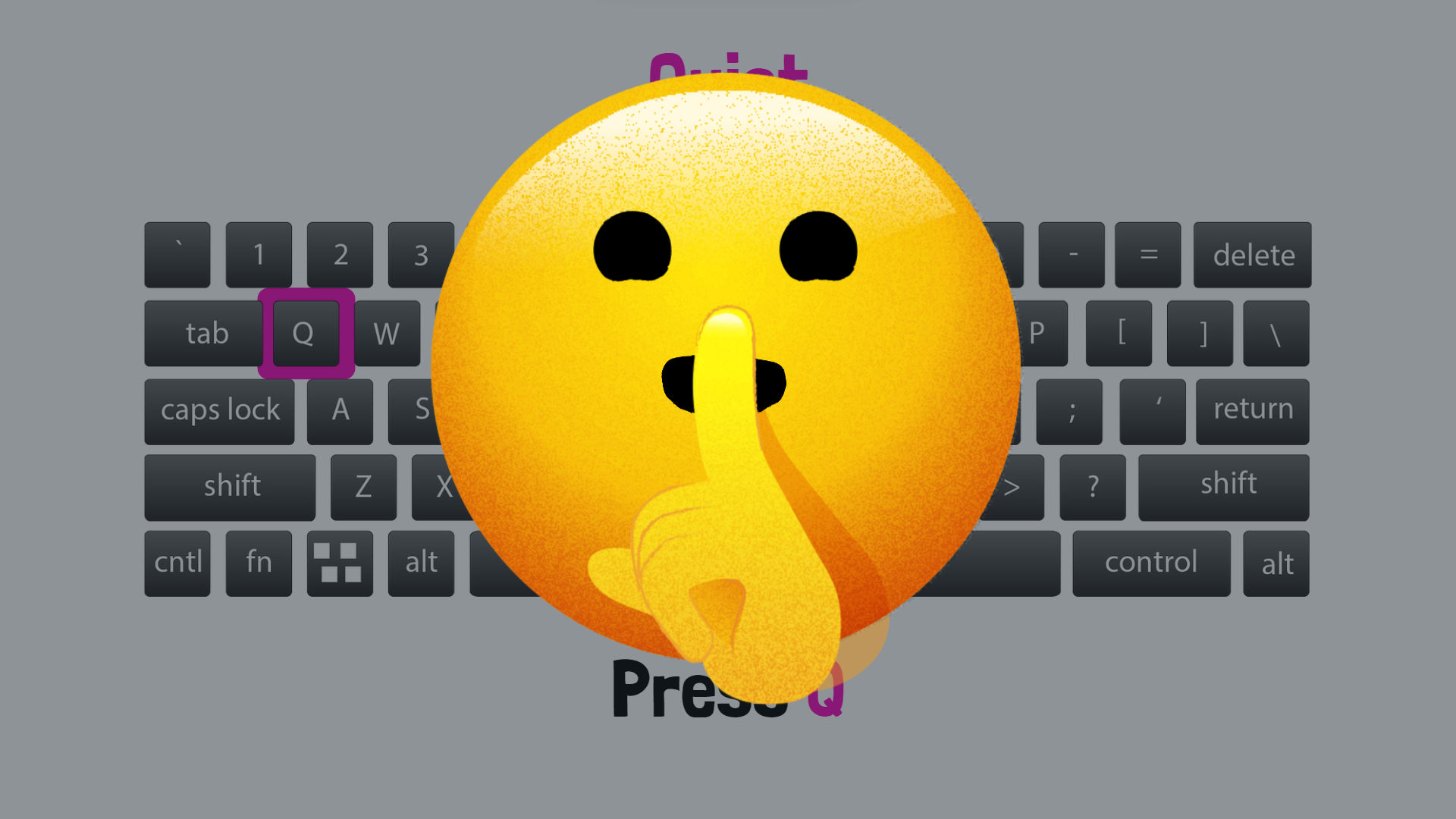
How to use Canva AI to create a presentation with interactive and engaging concepts is by using Magic Shortcuts. This feature allows you to instantly add visual and audio effects while presenting.
Magic Shortcuts are available once you click Present. You can trigger effects by pressing specific keys on your keyboard, making your presentation feel more lively and increasing audience engagement. Use the keyboard shortcuts below:
- B to blur the slide (press again to remove).
- Q to display a shush character.
- C for confetti.
- D for a drumroll effect.
- U to open or close curtains with applause.
- M for a mic drop animation.
7. Magic Resize
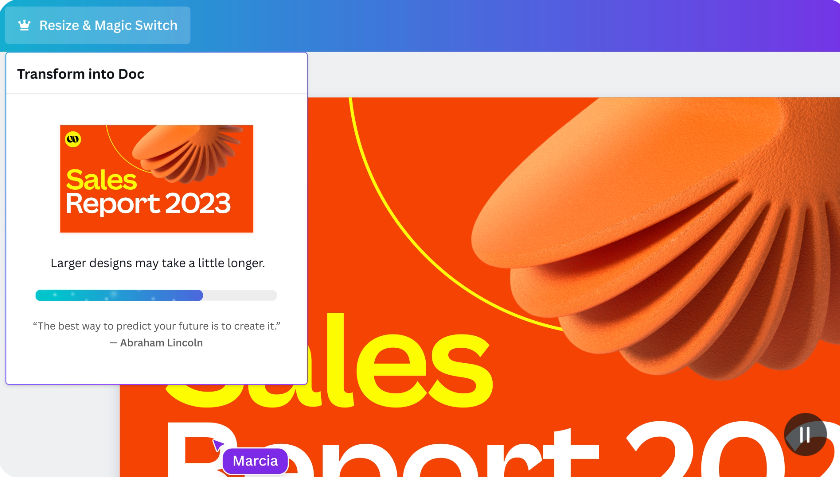
With Magic Resize, you can instantly change the size and format of your presentation without recreating it from scratch. This feature also allows you to translate your presentation into different languages without leaving the page.
For users managing multichannel campaigns, Magic Resize helps speed up content adaptation while ensuring the message and visual consistency remain aligned across every format.
Also Read: Complete Guide How to Make Custom Stamp Brushes in Procreate
Want to Use Canva AI to Create a Presentation?
After exploring how to use Canva AI to create a presentation above, you may be eager to try it yourself. AI-powered features in Canva clearly simplify and accelerate the slide design process while delivering high-quality visuals.
To further enhance the visual impact of your presentation, strengthen it with premium fonts from StringLabs Creative. Their Font Bundle with Business Elite License Package helps ensure your presentations look consistent, elegant, and visually distinctive in the eyes of your audience.