
How to Use Photoshop AI to Create High-Impact Visuals
Like many popular creative tools, Adobe Photoshop now includes AI-powered features that expand creative freedom and efficiency. As a result, many users want to learn how to use Photoshop AI to fully benefit from these capabilities.
Key Takeaways:
- Photoshop AI tools such as Generative Expand, Remove Tool, and Generative Fill speed up complex edits while keeping results natural and consistent.
- Learning how to use Photoshop AI involves both creating and refining visuals, from adding elements to improving depth, variations, and retouching.
- These AI features are particularly beneficial for photographers and designers who require rapid background changes, refined compositions, and professional results with minimal manual effort.
7 Different Ways to Use AI to Create Images in Photoshop
Photoshop’s AI capabilities go beyond basic photo editing. The examples below show how to use Photoshop AI to create, enhance, and refine images with ease.
1. Expanding Images with Generative Expand
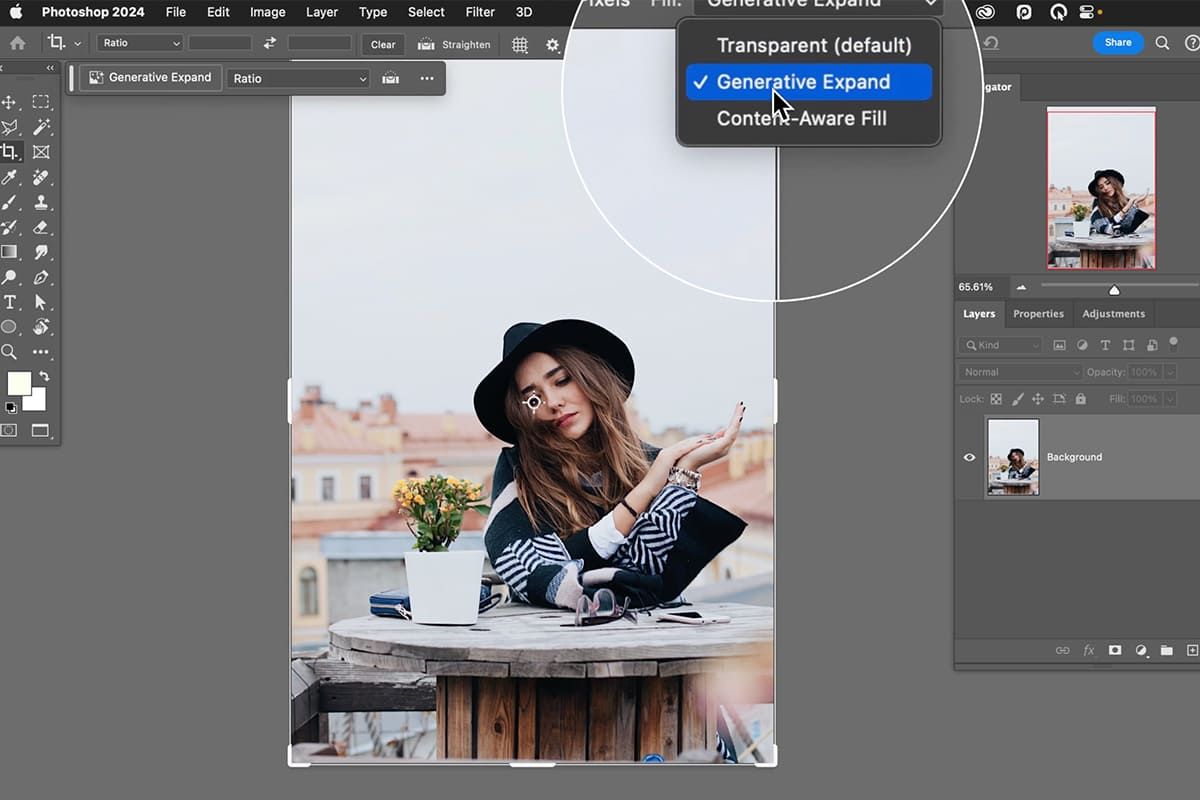
Photographers often deal with images that feel too cropped. When you use AI to edit photos, you can expand the frame naturally without cloning or cutting content.
How to use it:
- Open your image in Photoshop.
- Choose the Crop Tool (C) in the toolbar.
- Drag the corner handles outward to expand the canvas to your desired aspect ratio.
- In the Contextual Task Bar appearing at the bottom, ensure the Generative Expand is selected.
- Leave the text prompt blank for a seamless extension or type a prompt to add specific elements.
- Click Generate.
Also Read: 8 AI Signature Design Tools for a Professional Signature
2. Removing Distractions with the Remove Tool
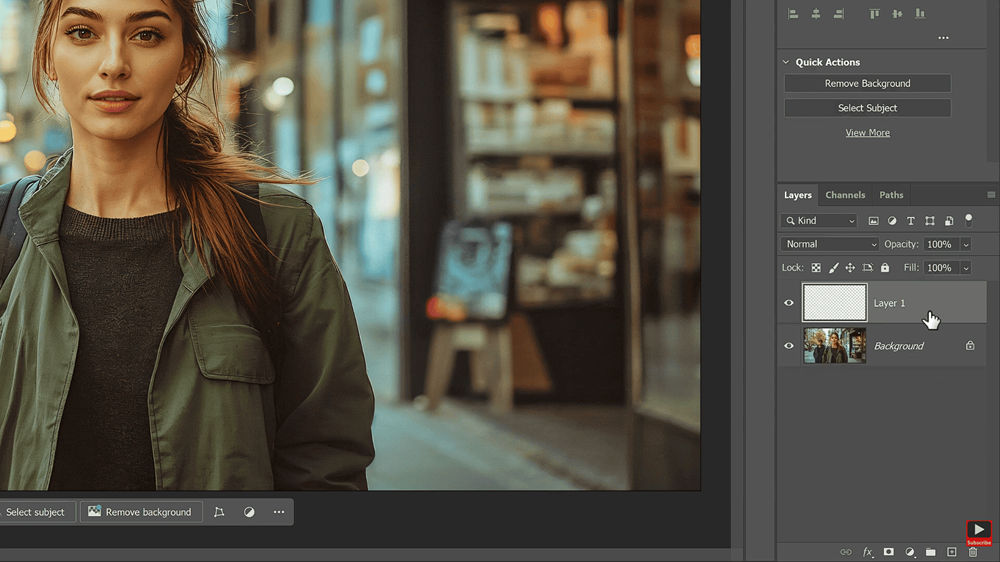
The new Find Distractions feature can detect and remove elements like people or wires automatically. As a result, you can clean up complex backgrounds quickly without obvious artifacts or repeating patterns.
How to use it:

- Select the Remove Tool (J) from the toolbar (grouped with the Spot Healing Brush).
- In the Options Bar, check the Find Distractions dropdown menu.
- Select Wires and Cables or People for automatic removal.
- For manual removal, simply brush over the object you want to disappear.
- Make sure Generative AI is turned on in the settings so Firefly can fill complex backgrounds naturally.
3. Adding Elements with Generative Fill
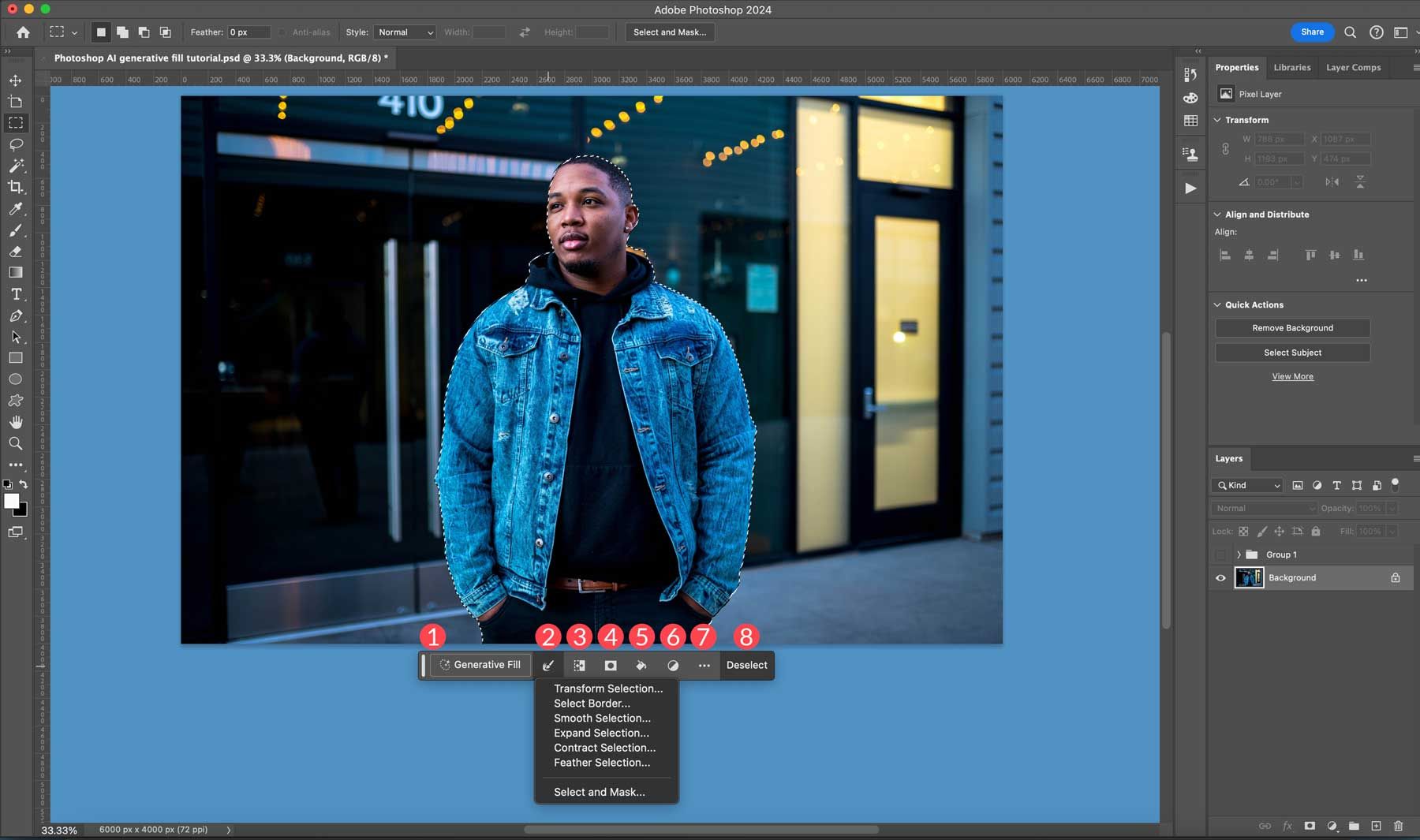
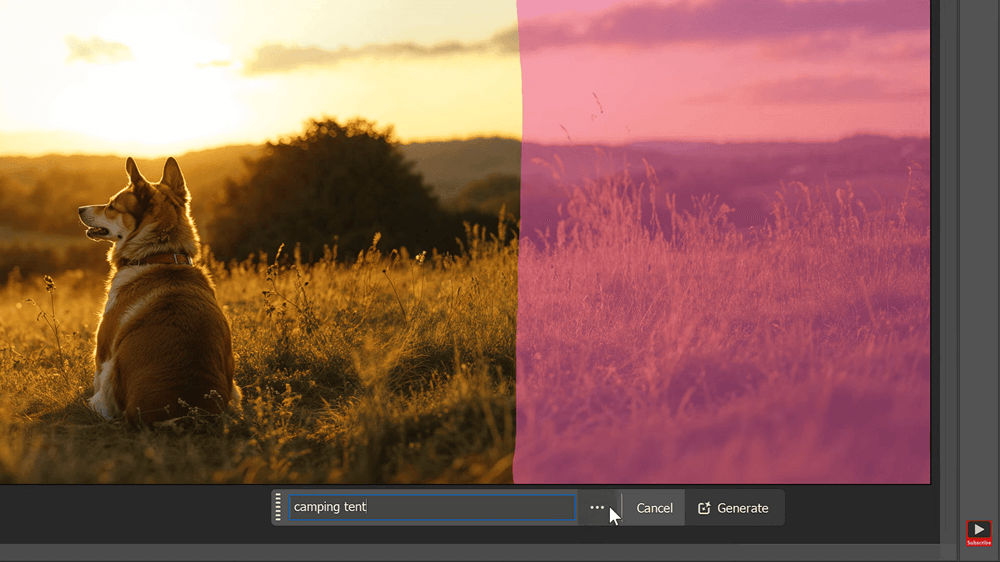
The Generative Fill feature lets you add or extend parts of an image using simple text prompts. With the feature, you can match lighting and shadows well to blend all the image elements naturally.
How to use it:
- Use the Lasso Tool (L) or Marquee Tool (M) to make a selection where you want the new object.
- Click Generative Fill in the Contextual Task Bar to start filling.
- Type a prompt that describes the kind of fill that you want to add to the overall image.
- Click Generate.
- Browse the three variations provided in the Properties Panel and choose the best fit.
Also Read: Best AI Image Generator for Line Art You Need to Try
4. Refining Results with Generate Similar
With Photoshop 2025, the Generate Similar feature lets you refine a result you already like by creating new variations.
How to use it:
- Create an object using Generative Fill (as described in the previous step).
- Open the Properties Panel to see your three variations.
- Click the three dots icon on the thumbnail of your favorite variation.
- Select Generate Similar.
- Photoshop will produce three new versions that closely adhere to the style and composition of your selection.
5. Professional Retouching with Neural Filters

Neural Filters automate time-consuming edits through machine learning, making them a core feature to learn when mastering how to use Photoshop AI.
How to use it:
- Go to the top menu and select Filter > Neural Filters.
- Locate Skin Smoothing under the All Filters tab and toggle it to On.
- Adjust the Blur and Smoothness sliders to achieve a natural look.
- For more creative changes, explore Smart Portrait to adjust facial expressions or gaze direction.
- Click OK to output the result to a new layer.
Also Read: 7 Best AI Image Generator Options Without Restrictions for Free
6. Creating Realistic Depth of Field with Lens Blur
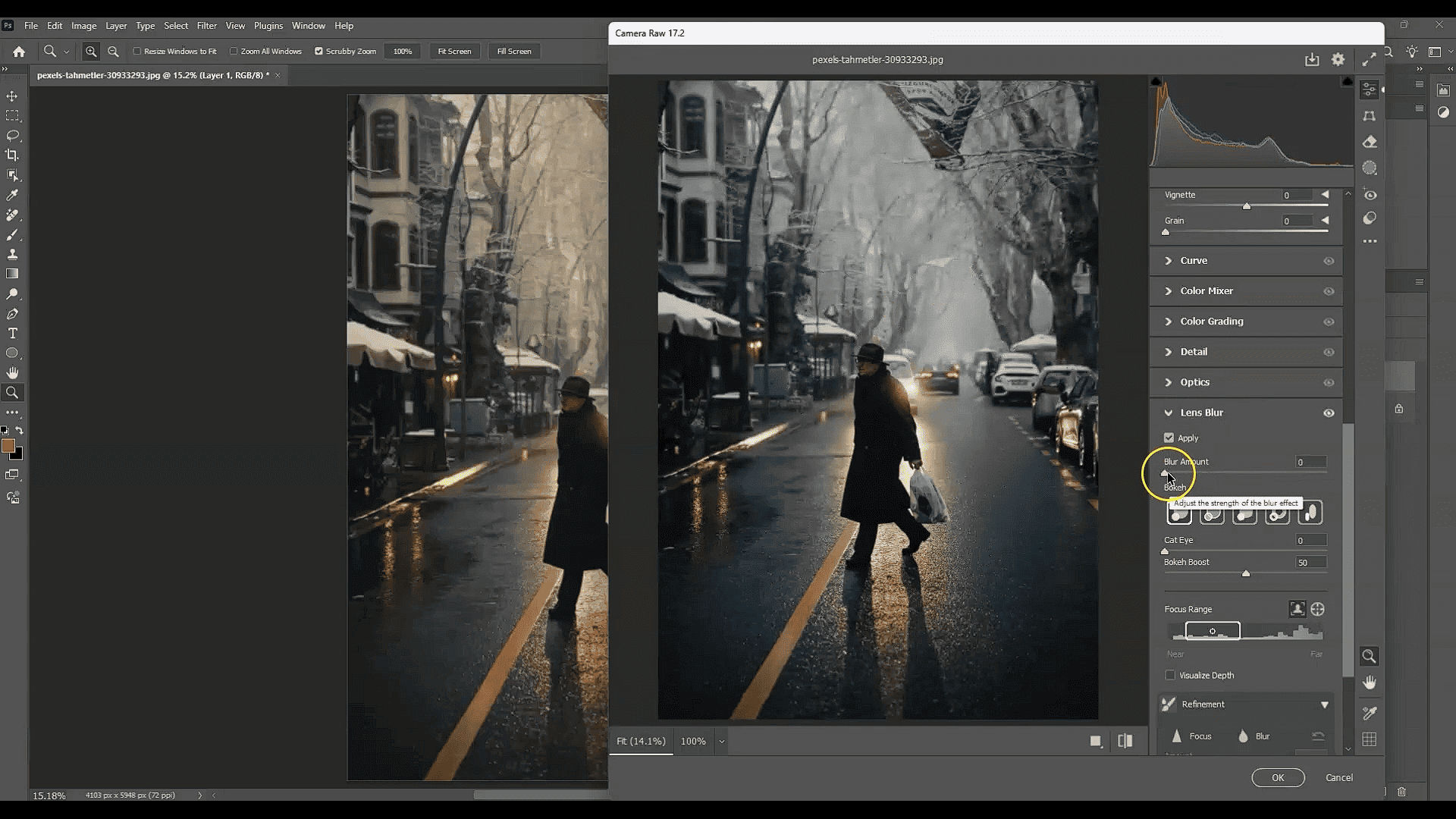
A cinematic look often relies on a shallow depth of field, and with Photoshop’s AI Lens Blur, you can recreate this effect after shooting.
How to use it:
- Navigate to Filter > Camera Raw Filter.
- Open the Lens Blur panel on the right side.
- Click Apply. Then, the system will detect the subject automatically.
- Control the intensity by adjusting the Blur Amount slider according to your preferences.
- Use the Bokeh shapes options to change the aesthetic of the out-of-focus light points.
7. Instant Background Replacement
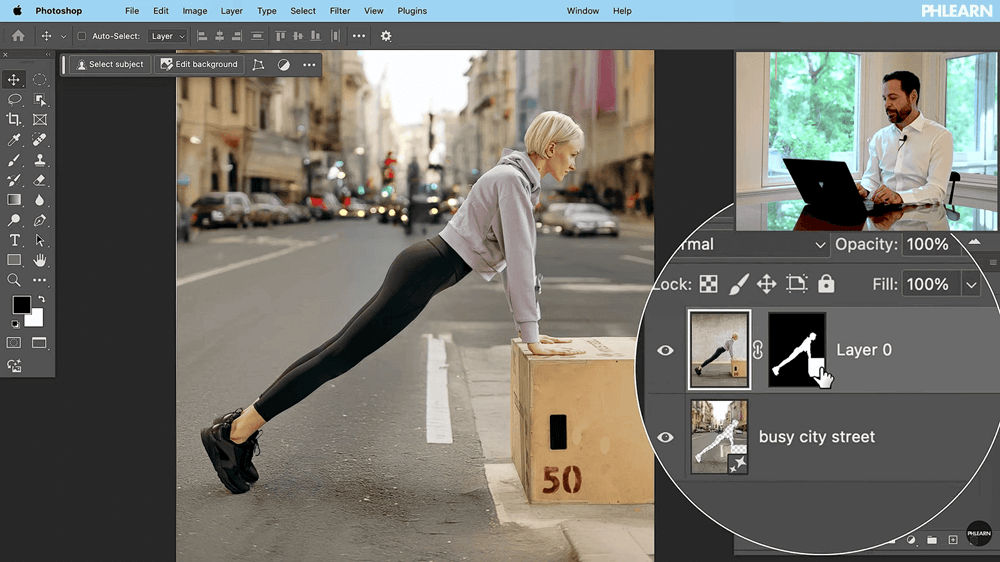
Product photographers often need to show items in real-life settings rather than plain studio backdrops, and with AI photo editing, they can swap backgrounds in seconds.
How to use it:
- Open your product image.
- Find the Remove Background button in the Contextual Task Bar and click it to remove backgrounds.
- With the background removed, ensure the background layer is selected (or select the space).
- Click Generative Fill.
- Type a prompt, like “marble countertop in a bright kitchen,” and hit Generate.
Also Read: Top Picks: Best AI Poster Design Tool for Every Designer
Use AI Tools to Expand Creativity and Improve Work Efficiency!
Learning how to use Photoshop AI ultimately comes down to finding an approach that fits your workflow and skill level. Whether you follow a guide to AI in Photoshop, rely on hands-on experimentation, or take structured courses, consistent practice helps unlock smarter edits and faster results over time.
While AI tools can improve efficiency, strong visuals still depend on thoughtful font choices. To complement Photoshop AI results, custom fonts from StringLabs Creative help ensure designs remain polished, consistent, and easy to recognize on any digital platform.
Comments are closed.