
How to Make Kinetic Typography for Engaging Motion Graphics
Typography can do more than simply display words on a screen. With motion art, text can become a powerful visual element that captures attention and enhances storytelling. This technique, known as kinetic typography, transforms static text into dynamic animated visuals that feel more expressive.
In this article, you will learn what motion typography is and how to create it step by step.
Key Takeaways:
- Animated text helps make visuals more engaging and memorable.
- Brands like Slack and Netflix use motion typography to strengthen storytelling and identity.
- The right typeface can make motion graphics clearer, stronger, and more energetic.
What Is Kinetic Typography?
Kinetic typography is the art of combining typography with motion design to create animated text visuals. Unlike traditional typography, which remains static on a screen, kinetic typography allows text to move, stretch, or transform dynamically to create a more engaging visual experience.
The main goal is to capture attention and guide viewers toward specific messages. By adding movement to words, designers can make information feel more impactful. In fact, studies have found that motion text can increase fixation duration and cognitive processing in digital reading scenarios, helping viewers stay focused on the content.
Beyond attracting attention, motion text also offers several other benefits, including the following.
- Improving brand storytelling.
- Strengthening visual hierarchy.
- Enhancing emotional engagement.
- Guiding users through UI interactions and directions.
- Making content easier to remember and understand.
Also Read: How to Add Fonts to Canva and Elevate Your Visual Identity
How to Create Kinetic Typography in After Effects
There are many platforms you can use to create motion text animations, including Adobe After Effects, Maxon Cinema 4D, and CapCut. In this tutorial, you will learn how to create a simple kinetic typography After Effects animation using shape manipulation and motion effects.
This guide is adapted from Sheikh Sohel’s channel, which you can watch for a more detailed visual walkthrough alongside these written steps.
Step 1: Create a New Composition

First, open Adobe After Effects and click New Composition. Set the resolution to 1920×1080 (Full HD), adjust the frame rate to around 24 FPS, and set the duration to about 5 seconds. Then, click OK.
Step 2: Add Text Layers

Select the Text Tool and type your desired words or phrases. Align the text to the center and arrange the words into a balanced square-like composition for a cleaner animation layout.
Step 3: Convert Text Layer to Shape Layers

In the timeline panel, right-click the text layer and select Create > Create Shapes from Text. Repeat this step for the other text layers, then hide the original text layers.
After converting them, organize the shape layers properly. You can also change the layer label colors to recognize each layer easily.
Step 4: Adjust the Path Points

Select all shape layers. In the layer search bar, type “Path” to locate the path properties. Click the stopwatch icon to add keyframes, then press U to display active keyframes on the timeline.
Using the Path Tool, select one of the path points on the upper text and hold Alt while dragging the upper points upward to stretch the shape. Repeat the process for the lower text to create a stretched text effect.
Step 5: Animate the Shape Transformation

Move the timeline indicator forward about 12 frames, then reshape the text again using the Path Tool. Repeat this process across several frames to create continuous motion and transformation.
Step 6: Smooth the Animation

The animation may initially appear stiff or too fast. To smooth the movement, select all keyframes, right-click them, then choose Keyframe Assistant > Easy Ease.
Step 7: Add Random Motion Variation

To make the animation feel more dynamic, slightly rearrange the upper keyframes into varied timing patterns. Repeat the process for the lower text layers while keeping the overall motion synchronized.
Step 8: Add Texture Effects

To make the motion typography look more dynamic, create a new adjustment layer by selecting New > Adjustment Layer in the timeline panel.
Next, add the following effects from the Effects & Presets panel:
- Noise: Set the amount to around 15 and disable Use Color Noise.
- Roughen Edges: Set the border to around 10 and the scale to around 60.
Still in the Roughen Edges settings, hold Alt and click the Evolution stopwatch icon, then type “time*100” into the keyframe expression. These effects add animated texture and distortion, making the motion typography feel more energetic.
Also Read: How to Add Fonts to Photoshop and Use Them Instantly
Best 3 Inspiring Kinetic Typography Examples
The use of kinetic typography is broader than you may realize. Beyond simple text animation, it is widely used in advertisements, UI/UX design, branding campaigns, music videos, and movie title sequences to create stronger visual storytelling. Here are three inspiring examples in real projects.
1. Slack – Where Work Happens

Slack uses animated typography effectively in its promotional campaigns by combining playful text movement with clean visual communication. It helps emphasize important messages while maintaining the brand’s friendly and modern identity. Despite the energetic motion, the campaign still keeps the information easy to follow.
Also Read: How to Design a Custom Badge For an Event? A Complete Guide
2. “The Incredibles” End Credits

The end credits of The Incredibles feature bold text movement and stylized transitions that match the superhero theme and retro comic book aesthetic. Combined with dynamic background illustrations, the typography creates an entertaining visual experience. Even the sequel continues this recognizable animation style.
3. Netflix Logo Animation
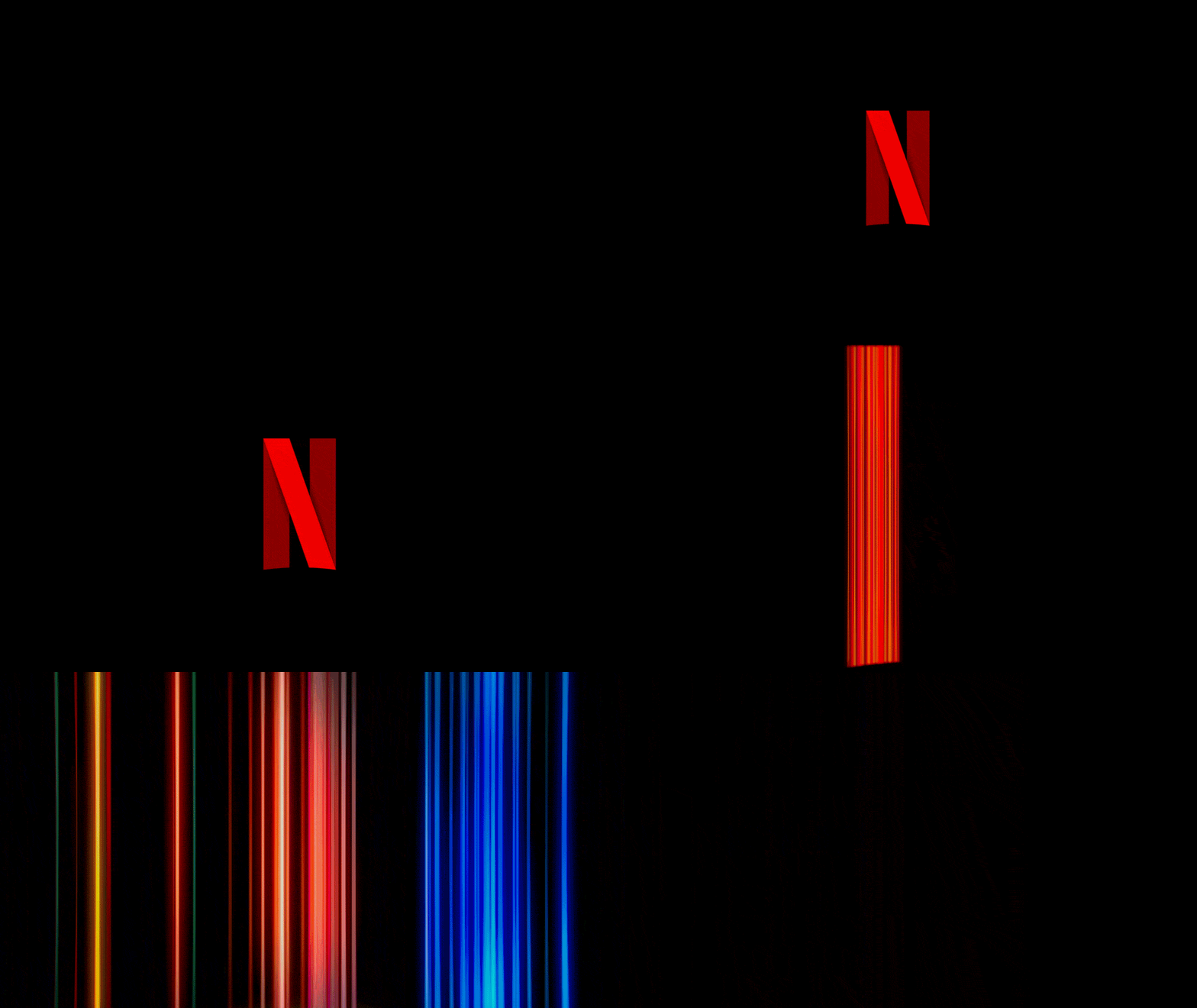
Netflix’s logo animation demonstrates how motion typography can strengthen brand recognition. The animation begins with the formation of the iconic red “N” logo before zooming into colorful light streaks. Although simple, the sequence feels cinematic and instantly recognizable, reflecting Netflix’s modern identity and diverse content.
Also Read: How to Make a Website to Sell Stuff in 7 Easy Steps
Amplify Your Kinetic Typography with Stunning Typefaces
After learning the basics of kinetic typography, you can start applying animated text techniques to make your design projects more engaging. However, creating impactful motion typography is not only about using the right software or animation effects. Choosing the right typeface also plays an important role in strengthening the overall visual experience.
At StringLabs Creative, you can explore a wide range of typefaces, from playful, modern styles to bold, dramatic designs that work beautifully for motion projects. With the right font combination, your motion typography can feel more expressive, memorable, and visually compelling for viewers.